
Your products live under Sells → Products. This guide covers every field of the product form and what each one changes on your store. Variants and stock quantities have a guide of their own: Variants and inventory.
The product list
The list shows each product with its name, its category, whether it is active and, when your plan includes inventory, its quantity in stock. Above it:
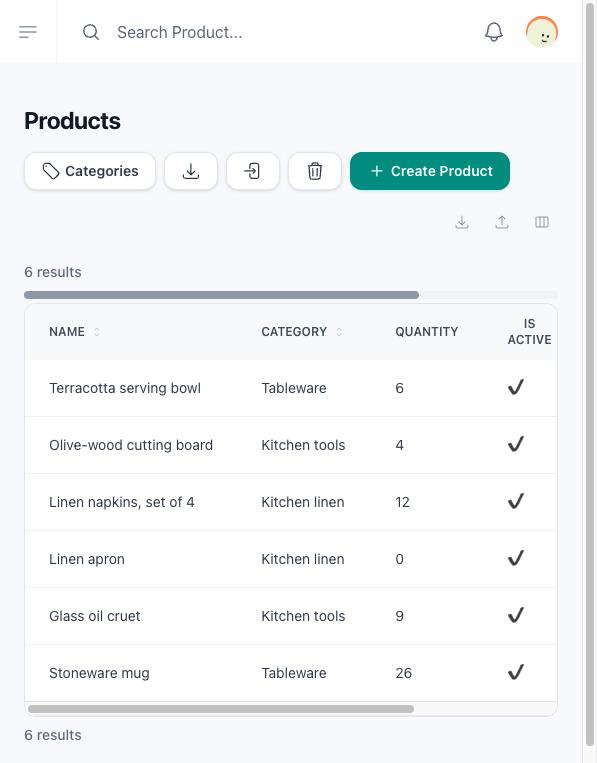
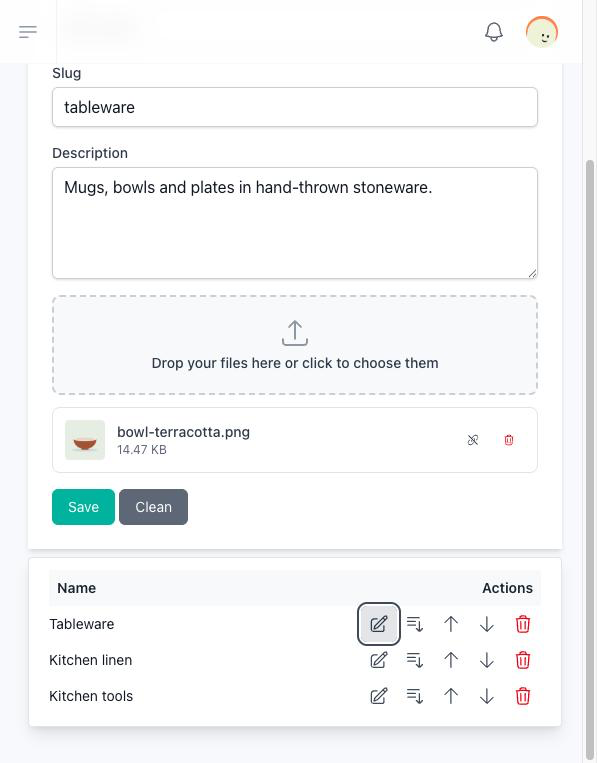
- Categories opens the product categories. Each category has a name, a slug, a description, an image and, optionally, a parent category. See Product categories.
- Download Excel and Import From Excel work as explained in Import and export products.
The product form
Click Create to open the form. Save it with the button at the bottom; the Variants section only appears once the product is saved.
| Field | What it does |
|---|---|
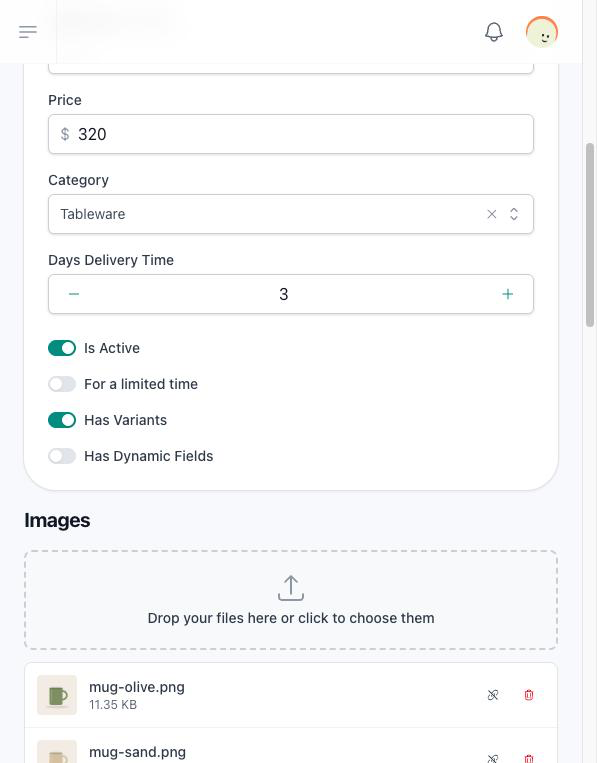
| Name | Required. The product's name everywhere on the store. |
| Slug | The end of the product's address. Leave it empty and it is written from the name. |
| Description | The text on the product's page. |
| Price | Required. The price before shipping and payment fees. |
| Category | The category it is listed under. |
| Is Active | Off, the product is left out of the home page, the product list and the categories without being deleted. |
| In Stock | Shown only when your plan does not include inventory. On, the product can be bought; off, it shows as Out of Stock and customers can request it instead. |
| Images | The product's photos. The ones you upload are kept in a folder of their own inside the Products folder of your files; one you pick from your files stays where it is. The first one is the photo of the product in lists and the image shown when someone shares the product's link. |
Physical product
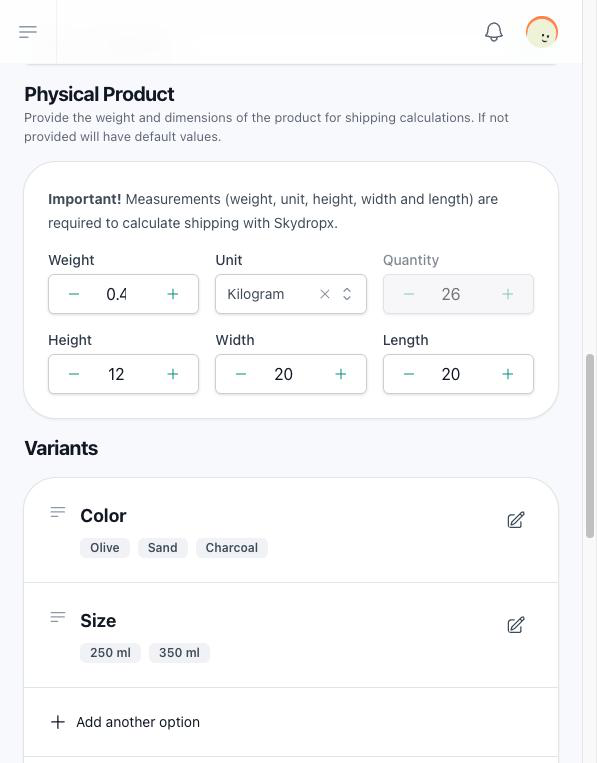
Weight with its unit (kilogram, gram, pound or ounce), and height, width and length in centimetres. They are optional, except to ship with Skydropx: the size of the parcel is calculated from them, so a product without them cannot be quoted correctly. See Shipping and pickup.
Descriptions
Add another description adds a pair of name and value, such as Material — Cotton. They appear on the product's page under its main description. Use them for the details you want to show as a list.
Options your plan opens
These fields only appear when your plan includes the add-on.
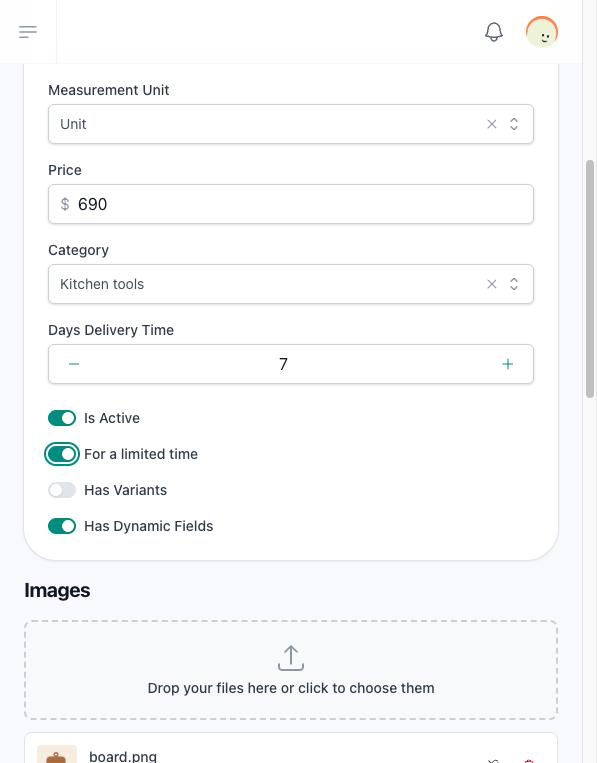
Measurement unit
Measurement Unit is Unit, Square Meter or Kilogram:
- Square Meter: the customer types a height and a width in metres on the product page and sees the total area.
- Kilogram: the customer types the kilograms.
- Unit: nothing extra is asked.
Delivery time
Days Delivery Time is the number of days you need to have the product ready. At checkout the customer sees available no later than a date: today plus the largest number of days among the products in the cart. The same date appears in the order's summary and in the email the customer receives.
Limited time
For a limited time asks for a Start date and an End date, and requires the product to be active. The product stays visible on the store, but customers can only add it to the cart between those two dates; outside them they are told the promotion has not started or has ended.
Dynamic fields
Has Dynamic Fields lets you ask the customer something about this product before they add it to the cart, such as a name to engrave or a photo to print. Add another dynamic field asks for:
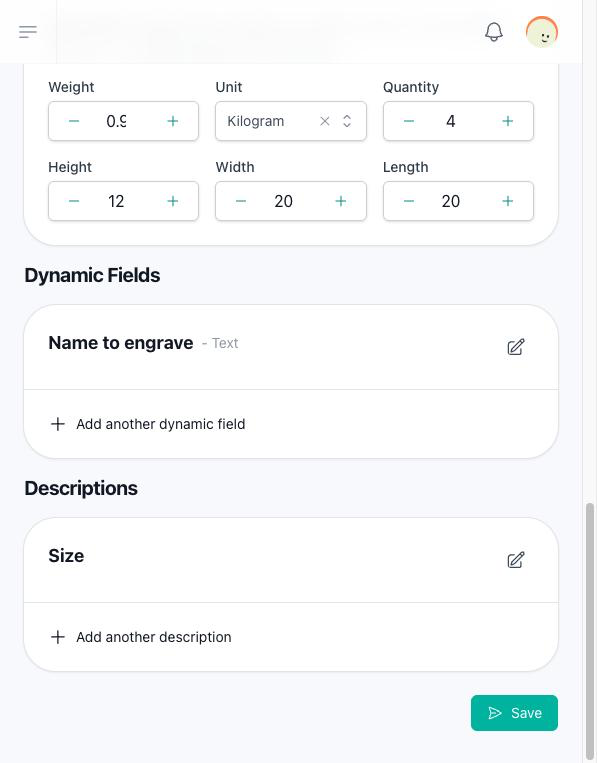
| Field | What it is |
|---|---|
| Field Name | The question the customer reads. |
| Field Type | Text, Number, Date, Select, File or Image. |
| Field Options (separated by commas) | Only for Select: the choices, such as Small, Medium, Large. |
| Field Is Required | The customer cannot add the product without answering. For File and Image, that means uploading one; until they do, adding the product is refused and the field says it is required. |
The answers travel with the order: each one is listed with the product in the order's details, and the files and images the customer uploaded can be opened from there. A product with dynamic fields is added as a new line every time, so two units with different answers stay apart.
A guest can attach files and images too, without signing in. What they attach is kept in the OrderDetails folder of your files, one folder per order line, and counts toward your space. While your store is out of space, the customer cannot attach anything and reads This site cannot receive files right now. Try again later or contact the site. A refused file leaves its field empty, so a product whose file or image is required cannot be added to the cart until you free some space.
Who can do what
Creating, editing and deleting products follows the permissions of each member's role in the team.