
A product can come in options — a size, a colour, a flavour — and each combination of them can have its own price and its own stock. This guide covers both: the variants of a product, and how the store counts stock.
Variants need the Product variants add-on, and stock quantities need the Inventory add-on. Without them, the fields in this guide are not shown.
Turn on variants
- Open the product and turn on Has Variants.
- Save the product. The Variants section appears under the form.
- Click Add another option, write the Option Name, such as Size, and its Option Values, such as S, M and L, one per row with Add another value.
- Click Done. The store creates every combination of the options at once.
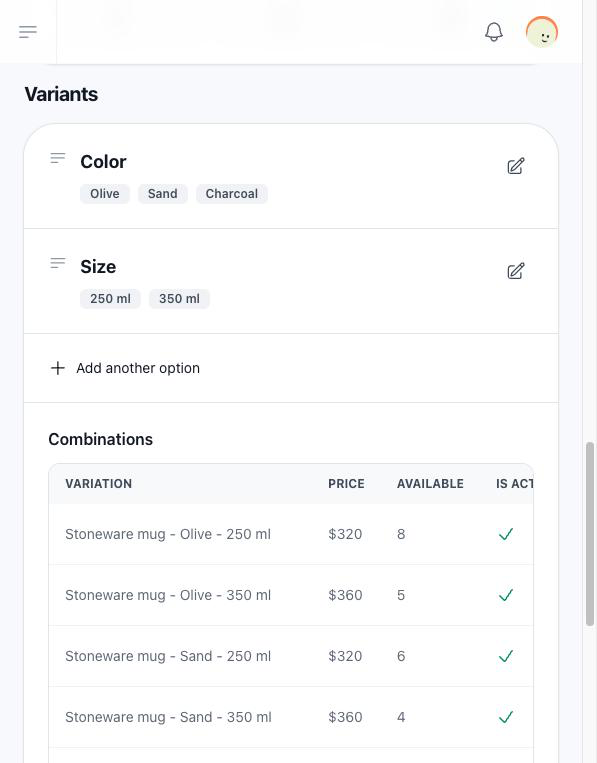
With Size (S, M, L) and Colour (Red, Blue), the product gets six combinations: S-Red, S-Blue, M-Red and so on.
Drag an option by its handle to change its order. The order decides how combinations are named and the order of the selectors on the product page.
Each combination
The Combinations table lists every combination. Edit one to change:
| Field | What it does |
|---|---|
| Name | The name shown to the customer. It starts as the product's name followed by the values, such as T-shirt - S - Red. |
| Price | The price of that combination. A new combination starts with the product's price. |
| Quantity | Its stock, when your plan includes inventory. |
| Has Stock | Whether it can be bought, when your plan does not include inventory. |
| Is Active | Off, the combination is not offered on the store. |
Changing the options keeps the combinations that still exist, with their price, stock and the name you gave them. Combinations whose values you removed are deleted.
What the customer sees
On the product page the customer picks one value of each option. The price changes to the price of the chosen combination, values with no stock are marked, and Add to Cart stays disabled until a combination is chosen. When the chosen combination has no stock, the button becomes Request product. See Stock requests.
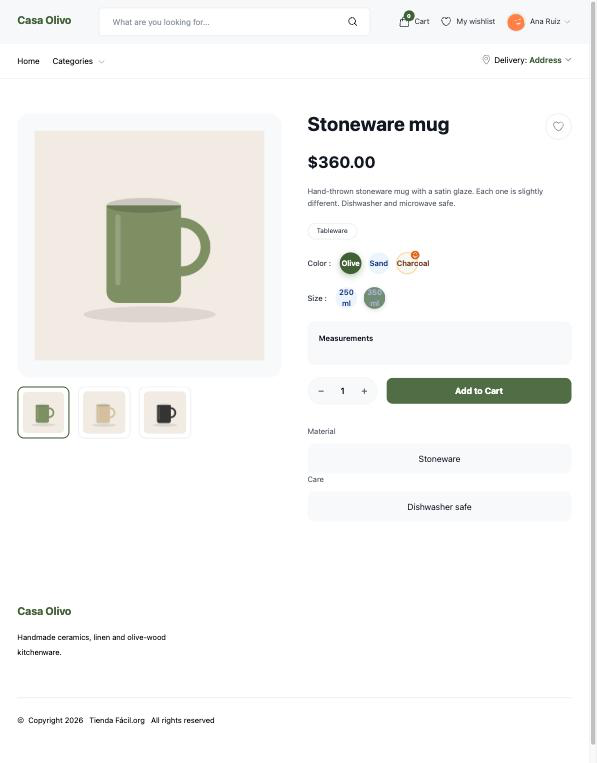
While a product has variants but none of its combinations is active, the store shows no selectors and sells the product itself, at the product's price.
If your plan stops including variants, the combinations already in a customer's cart are removed from it when they reach the checkout.
Inventory
With the Inventory add-on, every product has a Quantity in its form, and every combination has its own. A product with variants takes its stock from its combinations: its own Quantity field is disabled, and the product list shows the sum.
Stock moves at these moments:
| Moment | What happens to the stock |
|---|---|
| The customer adds to the cart | Nothing. The cart only checks that there is enough. |
| The customer clicks See summary | The quantities are subtracted: they are reserved for that order. With pay at pickup they stay reserved with no time limit. |
| A payment by Mercado Pago or bank transfer is not finished within its 10 minutes | The quantities reserved for that order come back when the customer opens the checkout again, or when the store clears the unfinished payment, about 20 minutes later. An order already placed keeps its quantities. |
| You cancel the order | The quantities come back. |
A product whose stock is zero shows as Out of Stock on the store and offers Request product instead of Add to Cart.
Without inventory
Without the add-on there are no quantities. Each product has an In Stock switch, and each combination a Has Stock switch: on, it can be bought in any amount; off, it is out of stock.