
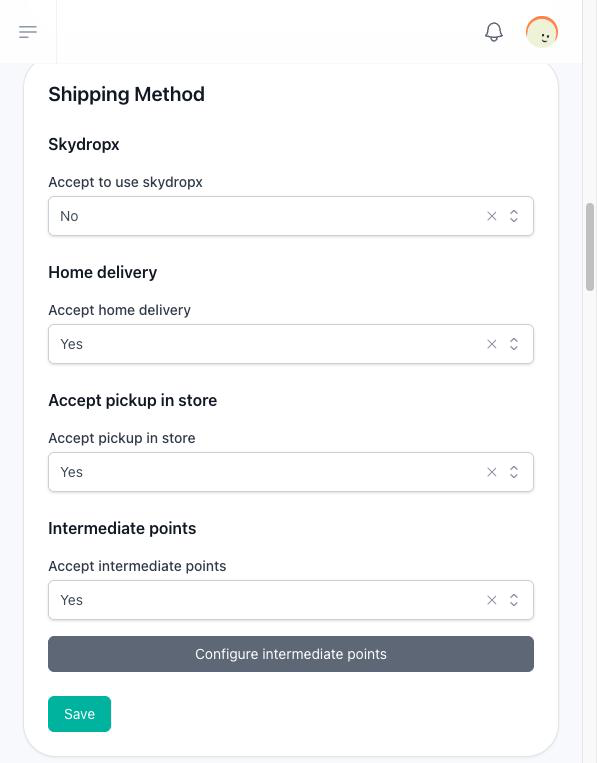
Your store can hand over orders in four ways, and you choose which ones the customer sees at checkout. All of them are under Settings → Shipping Method, saved with its Save button, and the shipping cost has its own section, Shipment Cost.
A customer can only finish a purchase when at least one way is turned on. With none, the checkout says No shipping methods configured.
Pickup in store
Set Accept pickup in store to Yes. Two things open with it:
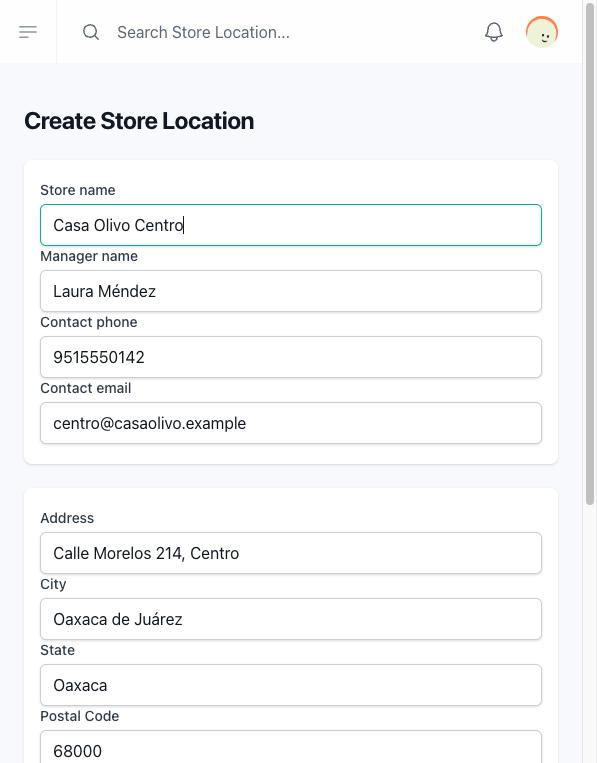
- Store Locations, in the store's menu, where you list the places a customer can collect from. Each location has a store name, a manager, a contact phone and email, its address, city, state, postal code, country (Mexico or United States) and a reference. One location can be marked Is default: it is the one parcels leave from when you ship with Skydropx.
- Pay At Pickup, under Payment Credentials. See Get paid.
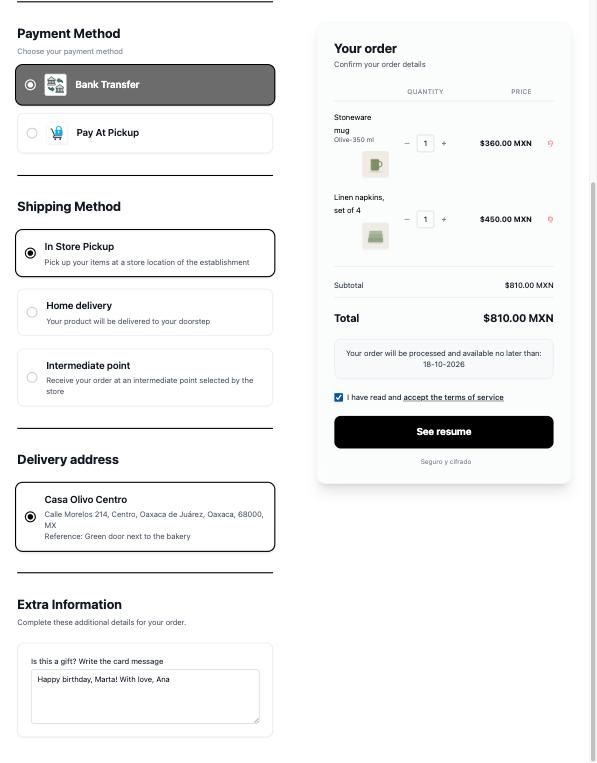
At checkout the customer chooses In Store Pickup and then one of your locations. While you have no location, choosing it tells them there is none and asks them to contact you.
Home delivery
Set Accept home delivery to Yes. At checkout the customer chooses Home delivery and types their address: street, city, state, postal code, country, company and a reference.
You deliver the order yourself, and you follow it with Update Shipping Status, as Orders explains.
Intermediate points
Set Accept intermediate points to Yes and click Configure intermediate points. Each point has a title and a description, such as Downtown square — Mondays and Thursdays from 10 to 13, by the fountain. You can have up to 50.
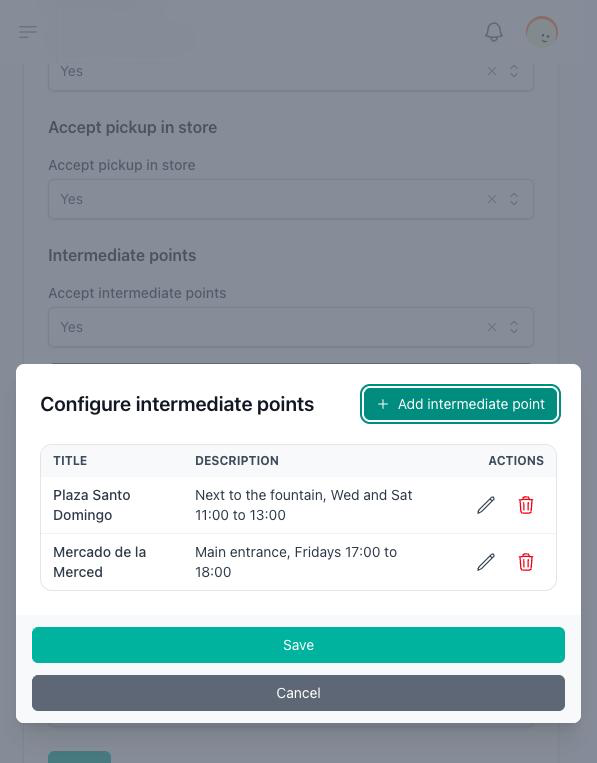
At checkout the customer chooses Intermediate point and then one of your points. The option only shows while at least one point exists.
Skydropx
Needs the Skydropx add-on and a Skydropx account of your own.
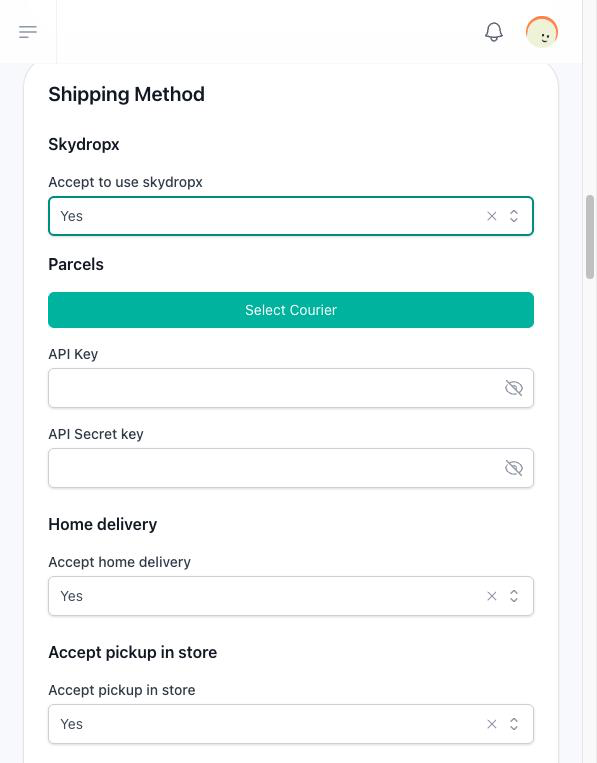
- Set Accept to use skydropx to Yes.
- Write your API Key and your API Secret key. Both are required while Skydropx is on.
- Click Select Courier and tick the parcel companies you want to quote with: 99 minutos, Paquetexpress, Quiken, Sendex, DHL, Estafeta, FedEx, AMPM and J&T Express.
- Make sure the store has a default store location: parcels leave from its address. Store locations are only available while pickup in store is on.
- Give your products their weight and their height, width and length. The parcel is calculated from them: the longest length and width among the products, the heights added up, and the larger of the real weight and the volumetric weight.
At checkout the customer chooses Skydropx Shipping, types their address and clicks Get Shipping Quote. The store asks Skydropx for rates with the parcel companies you ticked, and the customer picks one: its price, company and days are added to the order. When the customer changes their address or switches to another way of receiving the order, the chosen rate is dropped and they ask for a new quote. Skydropx is not offered while the customer has chosen pay at pickup. Without a default location, choosing it is refused; without a ticked parcel company, the quote is. Both messages ask the customer to contact you.
After the order is paid, you create the shipment and print its label from the order. See Orders.
The shipping cost
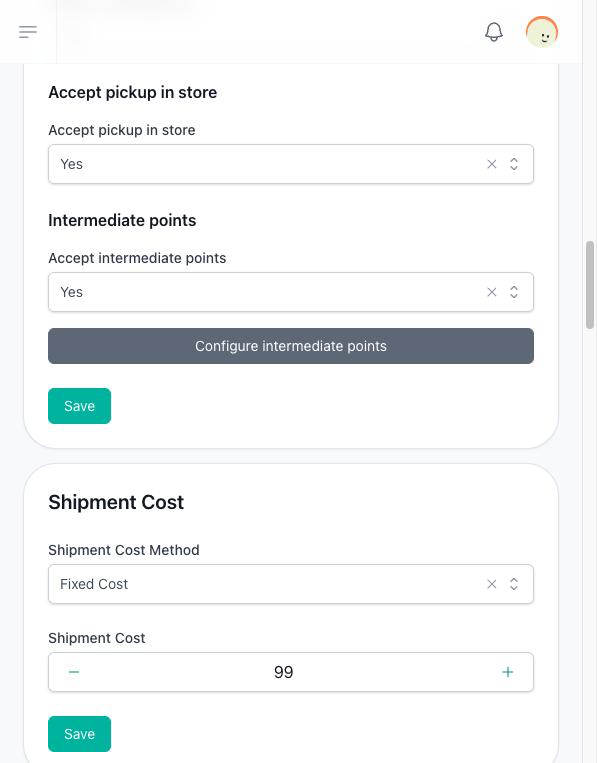
Under Shipment Cost, Shipment Cost Method decides what the customer pays for shipping:
| Method | What the customer pays |
|---|---|
| Free Shipping Cost | Nothing for home delivery. Every new store starts here. |
| Fixed Cost | The amount you write in Shipment Cost, between 0 and 99,999, on every home delivery order. |
| Skydropx | Only offered while Skydropx is on. Home delivery costs nothing, as with Free Shipping Cost. |
Whatever the method, a Skydropx order pays the rate the customer chose, and pickup in store and intermediate points cost nothing.