
Every purchase arrives under Sells → Orders. This guide explains what the statuses of an order mean, how to find an order, and what each button on it does.
The three statuses
An order has three statuses that move separately:
| Status | Values |
|---|---|
| Order Status | Inactive while it is a cart, Pending while it waits for you to confirm the payment, Active once it is paid or in preparation, Finished when it was delivered, Cancelled. |
| Payment Status | None, Paying during the customer's checkout, Pending while you have to confirm it, Paid, Refunded when the order was cancelled. |
| Shipping Status | None, On Preparation, Ready, Sent, Received, Cancelled. |
Where each payment method leaves a new order:
| Payment method | Order | Payment | Shipping |
|---|---|---|---|
| Mercado Pago | Active | Paid | None |
| Bank transfer | Pending | Pending | None |
| Pay at pickup | Pending | Pending | None |
Next to those three, an order shows two more fields:
| Field | What it shows |
|---|---|
| Status | The order's delivery status. It shows in the list and on the order, starts as Pending and becomes Cancelled when the order is cancelled. The customer's order page does not show it: it shows the Shipping Status, Pending while it is None, and Cancelled once the order is cancelled. |
| Flow | Only on the order: the last step its payment method recorded, as the store writes it, such as start when the order arrives, transfer validated once you confirm a transfer, or order delivered and paid once you confirm a payment at pickup. |
Find an order
The list opens filtered to the Order Status Pending, the orders waiting for you. Change the filter to see the rest: a Mercado Pago order is Active from the start, so it is not in the list until you change the filter. You can also filter by Payment Status and Shipping Status.
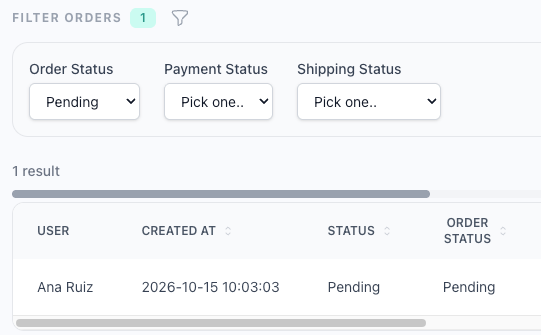
Each order shows who bought — the customer's name, or Guest when they did not give one — and its statuses.
What an order shows
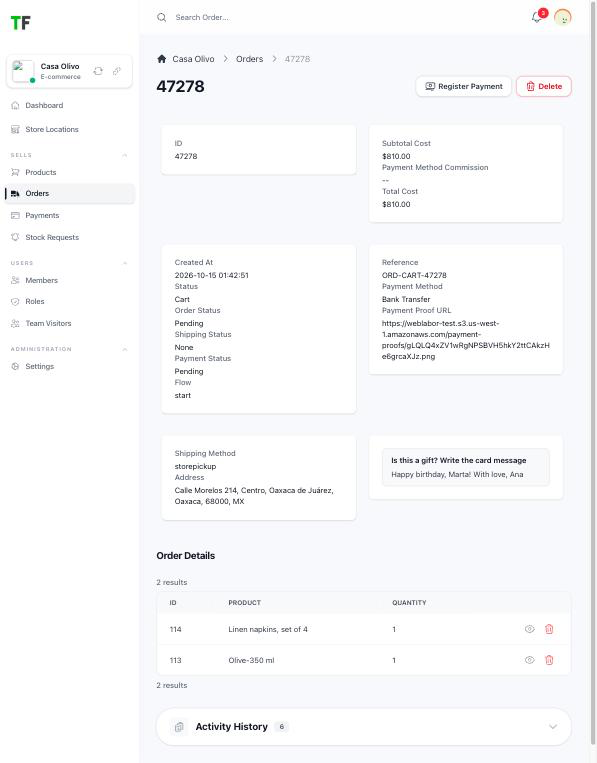
| Section | What it holds |
|---|---|
| Basic Buyer Data | For a guest, the name, phone and email they typed at checkout. |
| Costs | The subtotal, the payment method's commission, the Skydropx shipping rate when there is one, and the total. |
| Order Status | When it was placed and its statuses. |
| Payment Information | The payment method, the recorded payment and its date. For a transfer, the reference and Payment Proof: View proof opens the proof, or No payment proof uploaded when the customer sent none. |
| Shipping Information | The shipping method and the address. |
| Extra Information | The customer's answers to your checkout questions, when there are any. |
| Order Details | Each product, its quantity, the answers to its dynamic fields and the files the customer uploaded. |
The actions
Each action shows on an order only when it applies:

| Action | When it shows | What it does |
|---|---|---|
| Register Payment | Bank transfer or pay at pickup, with the payment Pending. | Opens the payment confirmation. See Confirm a payment. |
| Create Shipment | The customer chose a Skydropx rate, the order is paid, has no shipment and is not sent. | Opens the shipment form. See Ship with Skydropx. |
| Download Label | The order has a Skydropx shipment. | Downloads the label. |
| Cancel Shipment | The order is paid and has a shipment without a tracking number yet. | Removes the shipment from the order so you can create it again. Use it only when the label could not be downloaded. |
| Mark as Sent | Same as Create Shipment. | Marks the order as Sent without creating a shipment, when you send it some other way. |
| Update Shipping Status | Home delivery orders, while the shipping can still move. | Moves the shipping to the next status — On Preparation, Ready, Sent, Received — or cancels the shipment. |
| Finalize Order | The order is paid, not finished, and either sent or for pickup in store or an intermediate point. | After you confirm it was delivered, the order is Finished and its shipping Received. |
| Cancel Order | The order is paid, Active and not sent. | After you confirm, the order is Cancelled, its payment Refunded, and its products go back to stock. |
Cancel Order does not return the customer's money and does not email them: the refund and the notice are yours to give. Mark as Sent, Update Shipping Status and Finalize Order send no email either.
You can also edit an order and change its statuses by hand.
Confirm a payment
For a bank transfer or a payment at pickup, the order waits as Pending until you confirm the money arrived. Click Register Payment: the page shows the order's total and, for a transfer, the proof the customer uploaded with View proof. Answer Was it paid in full?:
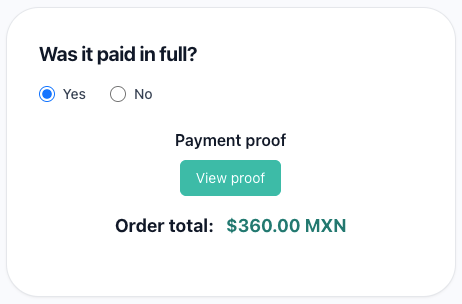
- Yes: the payment is recorded under Sells → Payments.
- A bank transfer becomes Paid and Active, and the customer and your team receive the payment approval email. Continue with the delivery.
- A payment at pickup becomes Paid and Finished, its shipping Received, and the customer and your team receive the delivered email.
- No: the order is Cancelled, its payment Refunded, its products go back to stock, and the customer and your team receive the cancellation email.
Ship with Skydropx
Once a Skydropx order is paid:
- Click Create Shipment and fill in the Printing format (standard PDF or thermal label), the Consignment note — the kind of goods, such as clothing, footwear or jewellery — the Package type (cardboard box or multi-sheet paper bag) and, optionally, Package protected with its Declared value.
- Click Send. The shipment is created in your Skydropx account with the rate the customer chose. When that rate has expired, the store quotes again with the same parcel company and service, and when the new price is higher it asks whether you pay the difference before creating it. When Skydropx no longer offers that parcel company and service, no shipment is created and you see The shipment could not be created: the rate the customer chose expired and Skydropx does not offer a rate from the same carrier and service right now. Try again later. Click Send again later.
- Click Download Label. When Skydropx returns the label and the tracking number, the order is marked Sent and the customer and your team receive the shipped email with the tracking number.
- When the parcel arrives, click Finalize Order.
If your Skydropx account is not verified, the shipment is refused with a message asking you to contact Skydropx.