
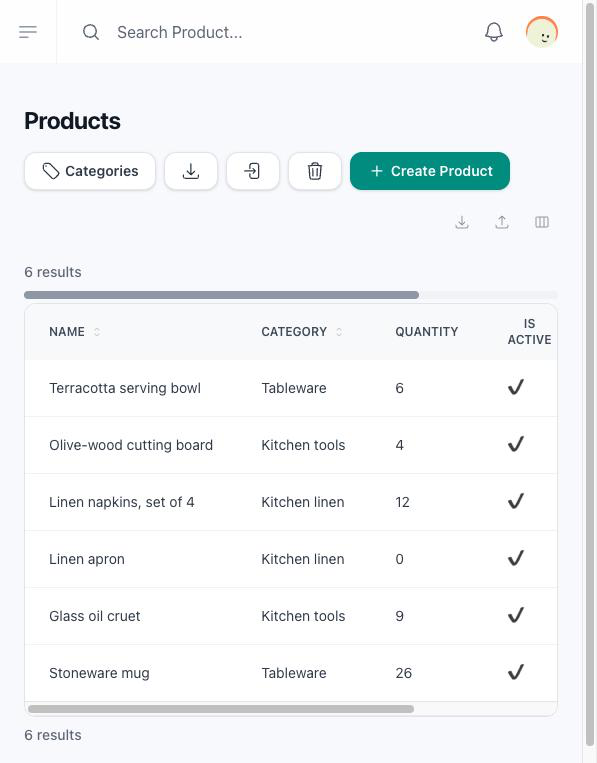
The product list has two buttons for working with a spreadsheet: one downloads your products, the other loads products from a file. Use them to keep a copy of your catalogue or to create many products at once.
Export
Download Excel, above the product list, downloads products.xlsx with every product of the store, active or not, one per row:
| Column | What it holds |
|---|---|
id |
The product's number in the store. |
name |
Its name. |
description |
Its description. |
price |
Its price. |
| Last column | 1 when the product is active, 0 when it is not. |
Nothing else goes into the file: no category, no photos, no stock and no variants.
Import
Import From Excel asks for a File: drop the Excel file on the uploader or click it to choose the file from your computer, then save to load it. Use the same columns as the export, with the names on the first row.
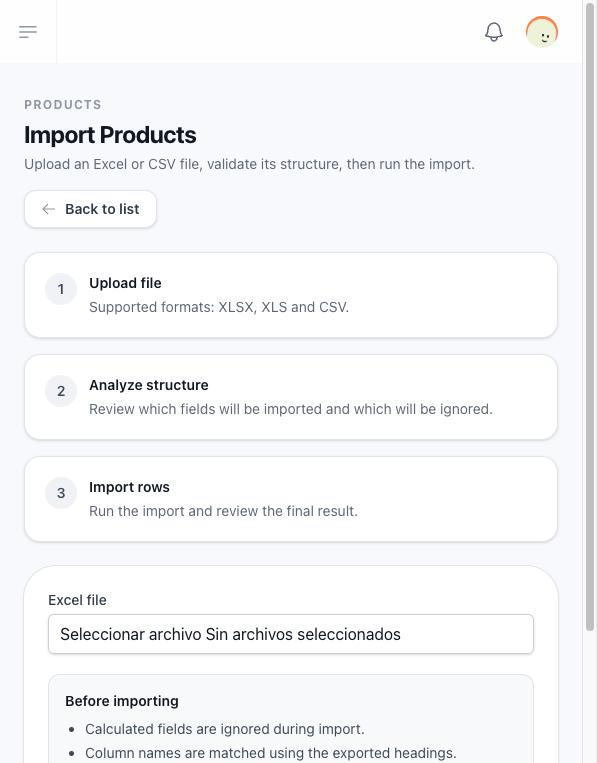
The file you upload is kept in the Imports folder of your files while it waits, and it counts toward your space, so a store that is out of space cannot upload one. Once the import ends, whether it worked or not, the file is deleted. A file you upload and do not import stays in Imports until you delete it from Media.
Only a file you have just uploaded is imported. A file already in your library, picked by its ID, is not read: the import answers The File field is required. Upload the file again instead.
For every row:
- A row without
nameor withoutpriceis skipped. - The price is cleaned to its digits and its decimal point, so
$1,250.00reads as1250.00. A row whose price is still not a number is skipped. - The
descriptioncolumn has to be in the file, even when its cells are empty: a file without it stops the import. The last column is1or0; when it is missing, the product is active. - A new product is created with those values.
- When
idmatches a product of the store, that product is also updated with the values of the row. The new product is created as well, so an imported file withidleaves you with the original product updated and a copy of it.
To create products, leave id empty. To change existing products, edit them in the form: the import does not replace a product without copying it.
The imported products have no category, photos, stock or variants: add them in each product's form.