
Your store's public site uses a default design made for selling. You do not need to write anything to have it working: you change how it looks from Settings. This guide covers its pages and every setting that shows on it.
The pages
| Page | What it shows |
|---|---|
| Home | The banner with your slogan and a search box, your address, phones and schedule, your categories and your active products. |
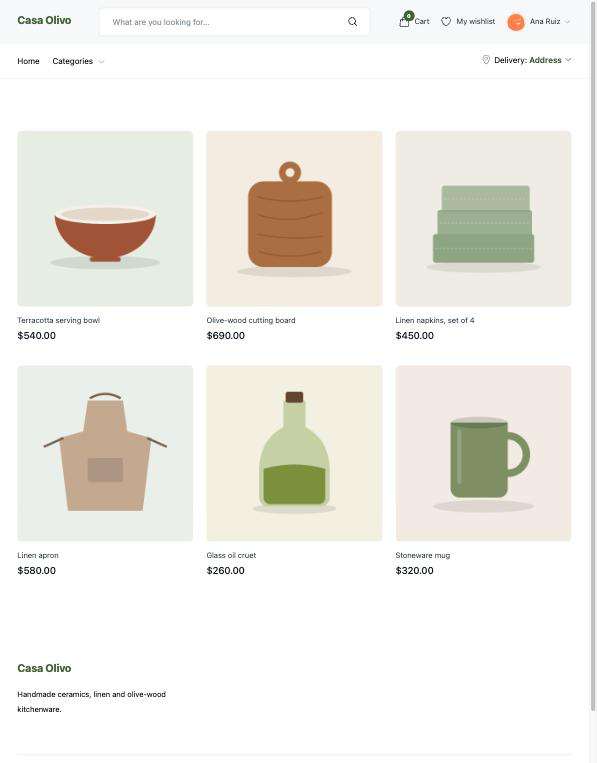
| Product list | Your eight newest active products. |
| Categories | Your categories, and the active products of each one, 20 per page. |
| Product | The photos, price, options and descriptions of a product, with Add to Cart or Request product. |
| Cart | The products in the cart, their quantities and the totals. |
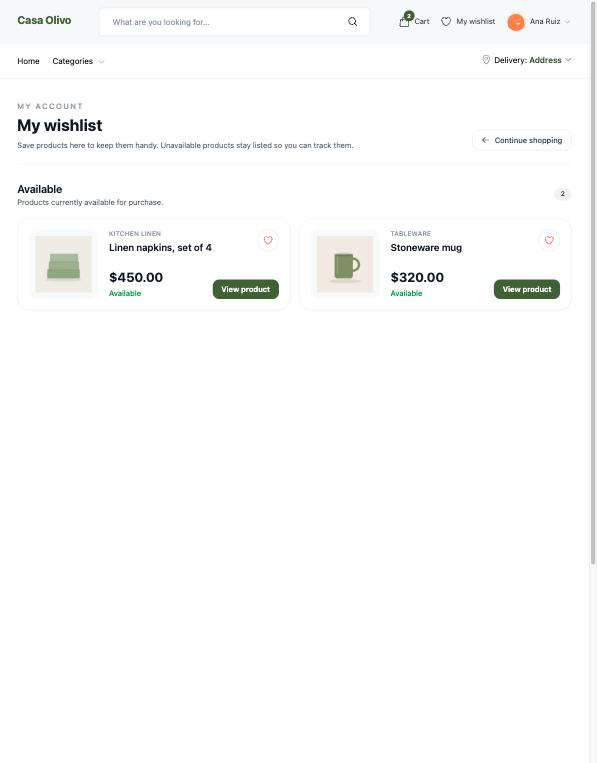
| Wishlist | The products the customer saved. It asks a guest to sign in first. |
| Contact | A contact form. |
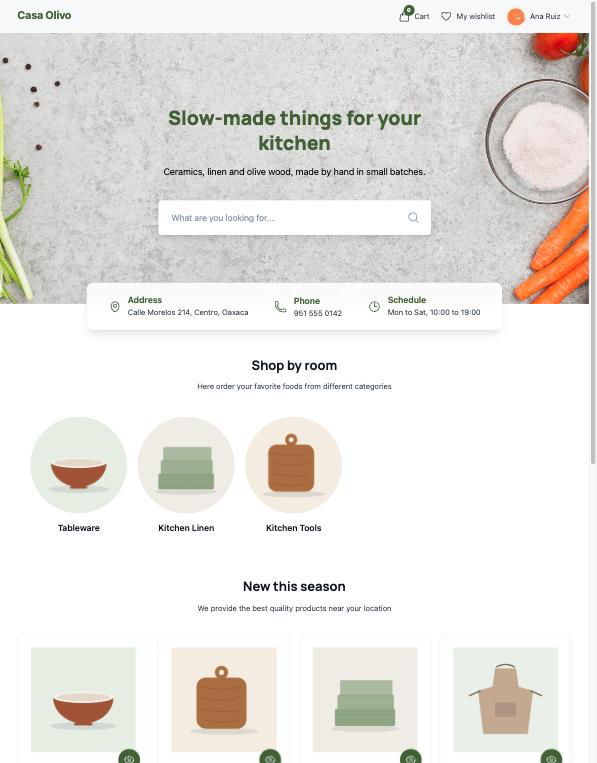
Every page shares the menu, with your store's logo, the categories that have products, the cart with its count, the wishlist, the account menu or Login, and a footer with your logo and your store's description. The logo also heads the menu that opens on a phone. When your store has a Team Icon, those places show the icon; otherwise they show the image under Settings → Store logo. Until you upload one of the two, they show your store's name instead.
A category with no products yet says No products found and offers Browse all categories, which takes the customer to your categories on the home page.
Business Information
Under Settings → Business Information:
| Setting | Where it shows |
|---|---|
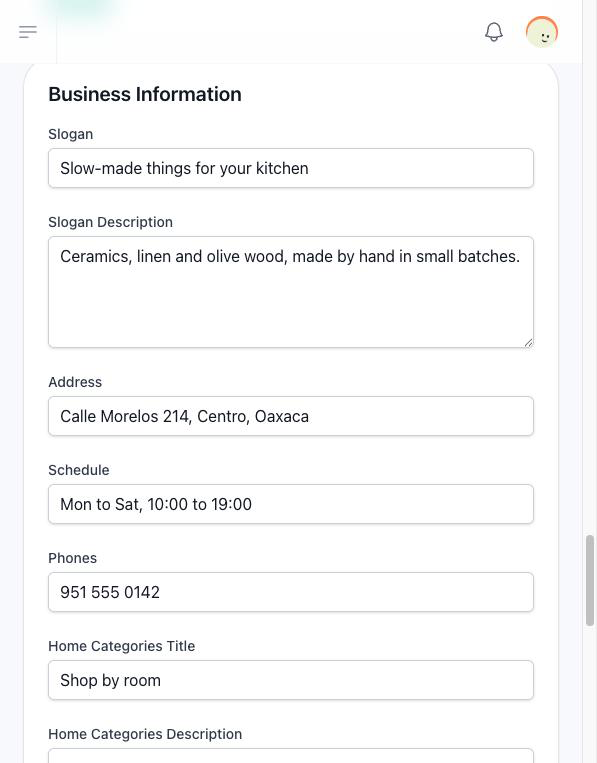
| Slogan | The large text on the home page's banner. Empty, the banner shows a sample slogan, so write your own. |
| Slogan Description | The line under the slogan. |
| Address, Phones, Schedule | A strip under the banner, each one only when it is filled in. |
| Home Categories Title and Home Categories Description | The heading of the categories on the home page. Empty, a sample text is shown. |
| Home Products Title and Home Products Description | The heading of the products on the home page. Empty, a sample text is shown. |
| Primary Color (Theme) | The colour of the slogan, the links, the buttons and the cart count. Empty, a green is used. |
| Hide Search Bar | Removes the search box from the home page's banner. |
| Hide Slogan | Removes the slogan and its description from the banner. |
| Background Image | The image of the home page's banner. JPG, PNG, GIF, WEBP, HEIC or AVIF, up to 5 MB; 1920 × 512 pixels looks best. It is saved as soon as you choose it, and kept at the top level of your files, where it counts toward your space. Uploading a new one deletes the one it replaces from your files. A new store has a sample image, and removing yours brings the sample back. |
This section shows while your store uses the default design. Save it with its own Save button.
Search
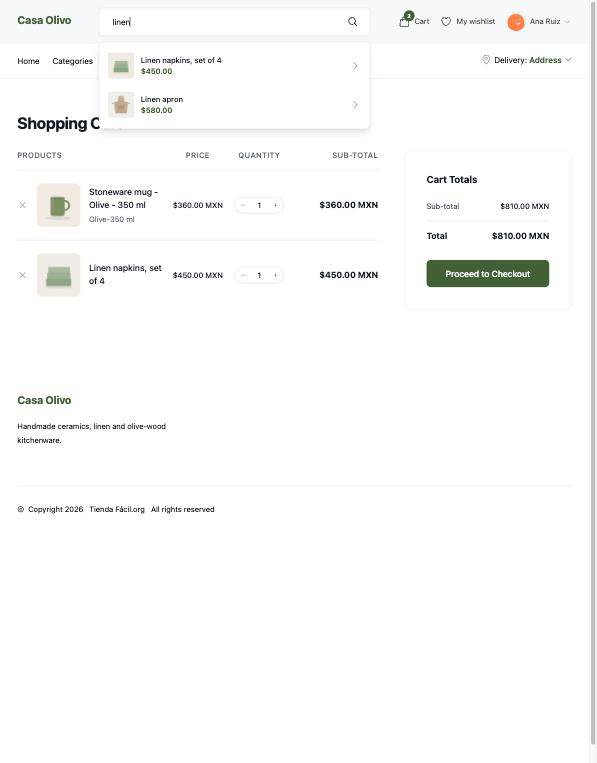
The search box finds products by name or description as the customer types two letters or more, and shows up to five, with their photo and price. It is in the home page's banner, in the menu of every other page, and behind the magnifying glass on a phone.
The wishlist
On a product page, the heart saves the product to the customer's wishlist, and a second click removes it. Saving asks a guest to sign in. The Wishlist page separates the products that can be bought now from those that are out of stock, which stay listed so the customer can keep an eye on them.
Features
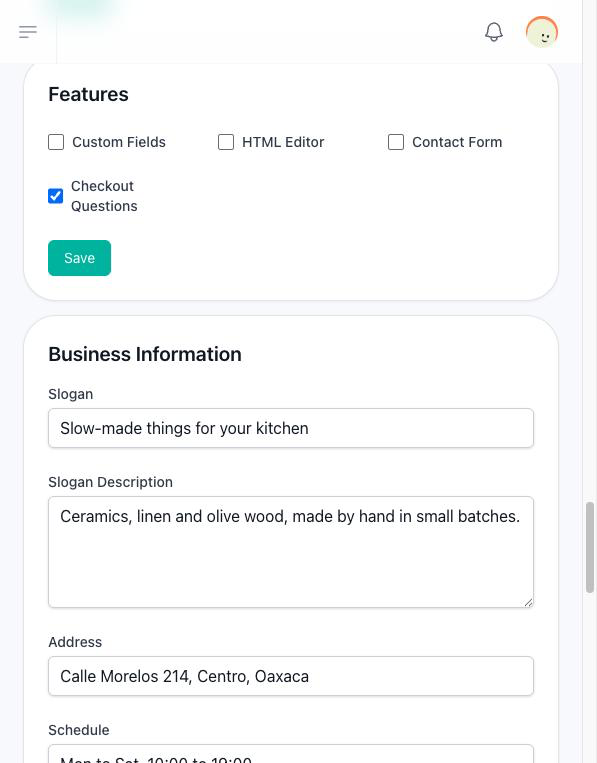
Under Settings → Features, four boxes switch on extra parts of your store. Hover over each one to read what it does:
| Feature | What it opens |
|---|---|
| Custom Fields | Extra fields you add to your records, such as a second description for your products. |
| HTML Editor | The Pages screen, where you edit the code of the store's pages. |
| Contact Form | The forms screen, to receive messages from your site. |
| Checkout Questions | Questions every customer answers at checkout. See How your customers buy. |
Pages you edit with the HTML Editor show on your store only when your plan includes the Pages add-on. Without it, your store keeps showing the default design.
Other settings that show on the store
In the left column of Settings:
- Team Icon: the small image in the browser tab of every page of your store, which shows the platform's icon until you upload one. It is also your store's logo in the menu and the footer, and heads the checkout, payment, confirmation, order and account pages; without it, those pages show the Store logo.
- Language: the language your store is shown in, for every visitor, whatever their browser or account uses. See Create and set up your store.
- ReCaptcha Site Key and ReCaptcha Site Secret: the reCAPTCHA keys your store's forms are checked with.
- Analytics Id: every page loads Google's tag with this id. The tag is not yet configured with it, so no page view reaches Google Analytics.