
This guide walks through a purchase from your customer's side, so you know what they see at each step and which of your settings shapes it.
The cart
On a product page the customer chooses the quantity — and the options, the measurements or the answers the product asks for — and clicks Add to Cart. The store checks there is enough stock and, for a limited-time product, that the dates allow it.
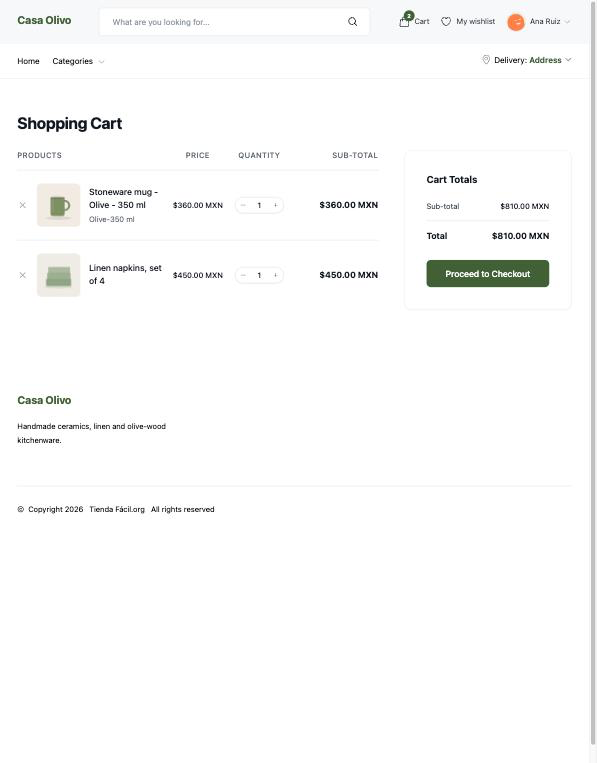
The cart icon in the store's menu shows how many items are in the cart, and opens the cart page, where the customer changes quantities, removes products and clicks Proceed to Checkout.
A customer who is not signed in keeps their cart while they browse the store.
Checkout
The checkout page has every step on one screen:
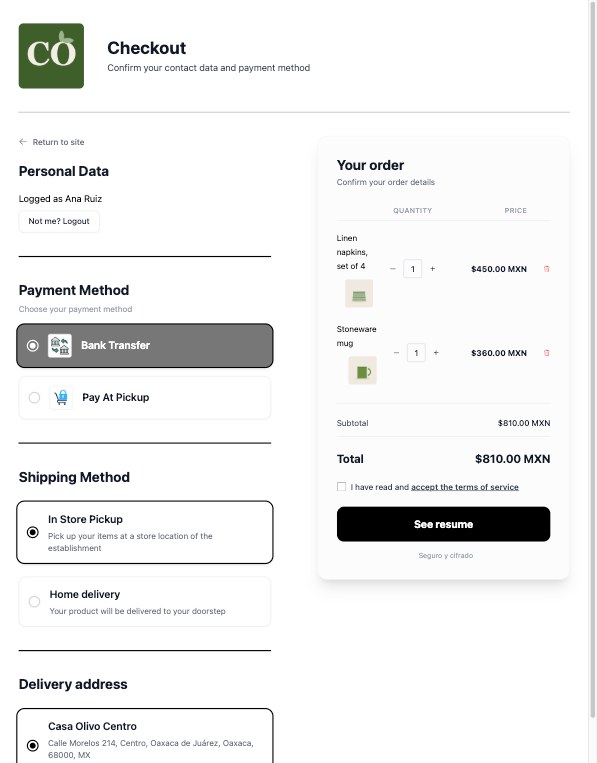
- Who is buying. A guest types their name, email and phone under Buy as a guest. They can also sign in or register from the same page, without leaving it: the cart they built as a guest becomes the cart of their account. A signed-in customer sees their name and a link to sign out.
- Payment Method. The methods you turned on, with the fee of Mercado Pago when you set one. With none turned on, it shows No payment methods configured. See Get paid.
- Shipping Method. The ways you turned on. Depending on the one chosen, the customer picks one of your store locations, types an address, picks an intermediate point or quotes Skydropx rates. See Shipping and pickup.
- Extra Information. Your checkout questions, when you turned them on. See Your checkout questions.
- Your order. The products, with buttons to change the quantities or remove a product — the payment method already chosen stays chosen — the subtotal, the shipping cost, the payment fee and the total. With the delivery time add-on, the date the order will be ready.
- Terms. The customer ticks that they accept the terms of service.
See summary checks everything above and that the products are still in stock.
The summary and the reserved time
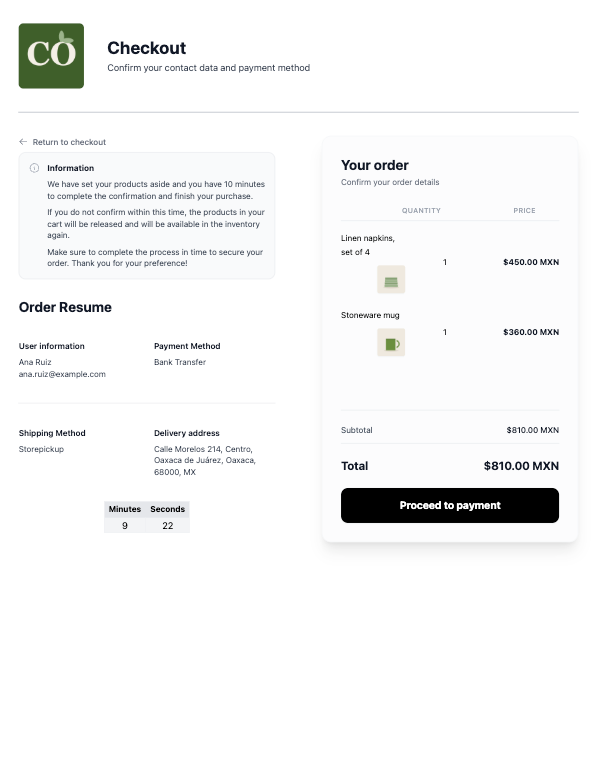
The next page is the summary of the order.
With the Inventory add-on, the products are reserved from this moment, whatever the payment method: they leave your stock so nobody else can buy them.
- With Mercado Pago or a bank transfer, the customer has 10 minutes to pay, with a countdown on screen, and the summary opens with the message You have 10 minutes to complete the payment. When time runs out, the customer returns to the checkout with the message Time limit exceeded and the same products, to choose the payment and the delivery again, and the reserved products go back to your stock.
- With pay at pickup there is no countdown, and the products stay reserved with no time limit. The notice tells the customer their products are set aside and that they pay when they pick the order up.
The button at the bottom is Proceed to payment, or Finish order for pay at pickup.
Payment
- Mercado Pago: the customer pays on Mercado Pago and is sent back to the store.
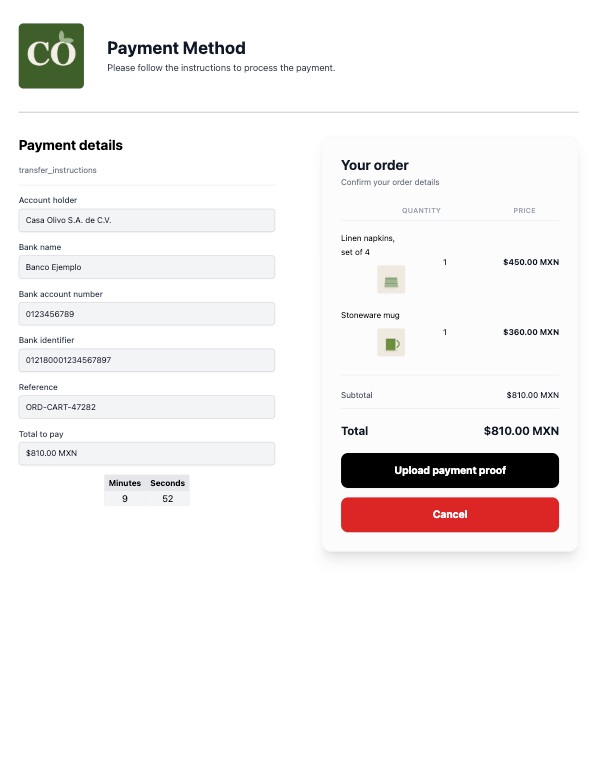
- Bank transfer: the customer sees your account details, the reference and the total, transfers, and uploads the proof.
- Pay at pickup: there is no payment step.
The confirmation
The last page thanks the customer, shows the order number, the products and the totals, and links to the order:
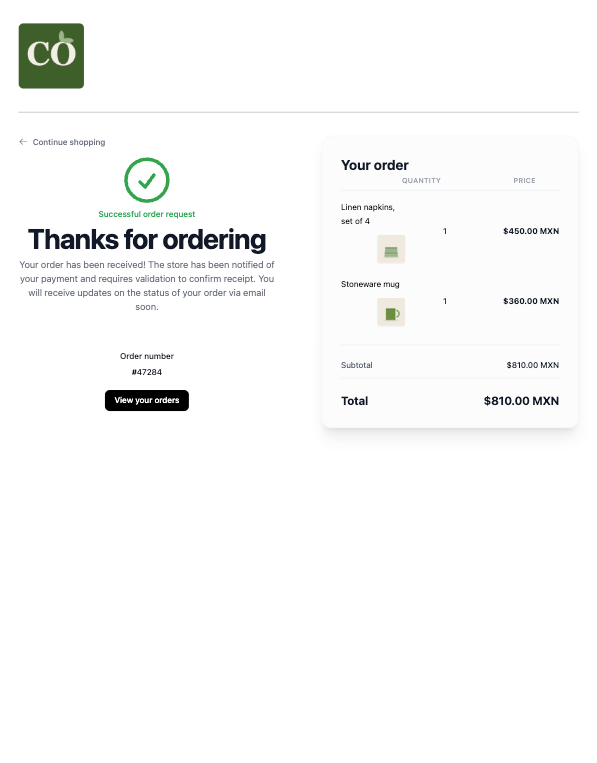
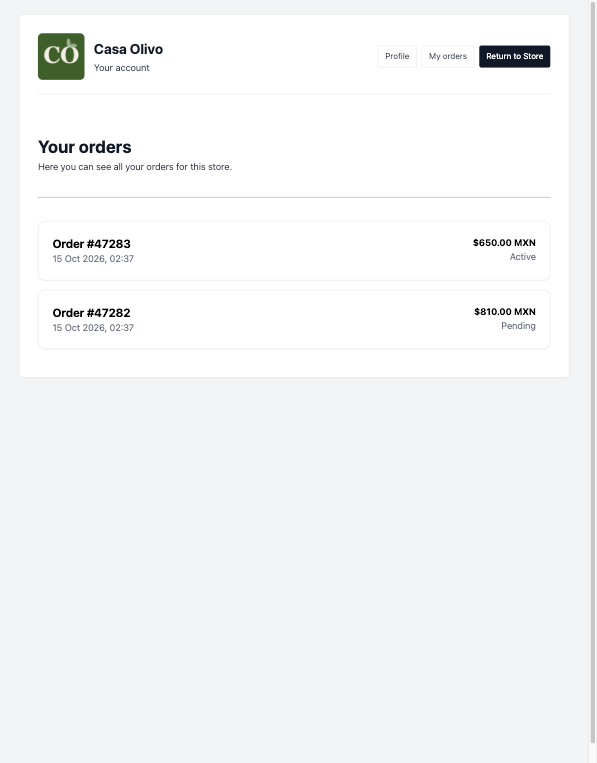
- A signed-in customer clicks View your orders and reaches Your orders, the list of their orders in their account.
- A guest clicks the same View your orders button and reaches the order's own page, a private address that only the link opens. The same link is in the email they receive.
The order's page shows its status, payment and delivery details, the store location, the Delivery address of a home delivery or the intermediate point, the tracking number when the order was shipped with Skydropx, and the answers to your questions. The status follows the order's Shipping Status: Pending until you start preparing it, then On Preparation, Ready, Sent and Received as you move it forward, or Cancelled when the order is cancelled. The steps under it fill in as the order moves.
Your checkout questions
To ask every customer something at checkout — a delivery time, a gift note, an invoice number:
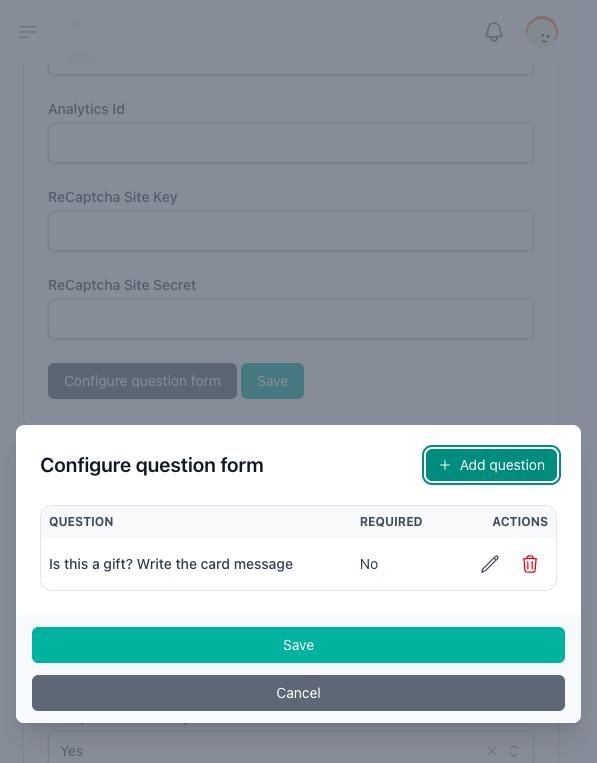
- In Settings → Features, tick Checkout Questions and save.
- Click Configure question form, under the settings in the left column.
- Add each question with its text, an optional placeholder, and whether it is required. You can have up to 20.
The answers appear on the order, under Extra Information, and on the order's page the customer sees.
The customer's account
A customer who registers on your store has an account on it. From the store's menu they reach:
| Page | What it holds |
|---|---|
| Profile | Change their email or their password. |
| Orders | Every order they placed in your store, newest first, and each order's page. |
| My wishlist | The products they saved with the heart on a product page. Saving one asks a guest to sign in first. |
After signing in or registering, the customer returns to your store's home page, or to the page they were trying to open.