
Your store writes to your customer and to the people you choose on your team when something happens to an order or when a customer asks for a product out of stock. This guide lists every email, when it goes out, and how to pick who receives them.
Choose who receives them
Open Settings → Emails. There are two lists, each one a choice among the members of your team:
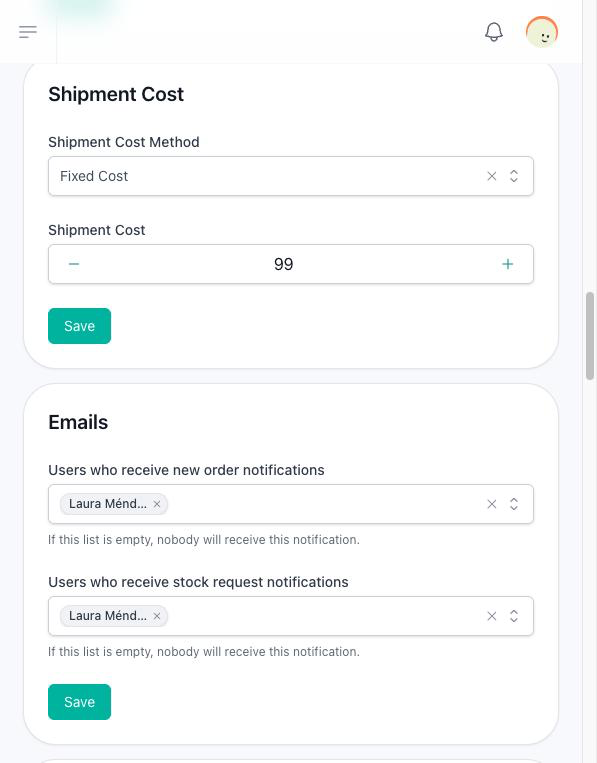
| List | What its members receive |
|---|---|
| Users who receive new order notifications | Every order email meant for your team in the table below, not only new orders. |
| Users who receive stock request notifications | The notice of each request that reaches Sells → Stock Requests. |
When the store is created, only its owner is on both lists. If a list is empty, nobody on your team is notified: the orders and requests are still saved, and you only find them in the panel.
Order emails
| Moment | Your customer receives | Your team receives |
|---|---|---|
| A Mercado Pago payment is approved | Thanks for ordering, with the products and the link to the order. | New order received, with the customer, the total and the payment status. |
| A bank transfer order is placed, with its proof | Thanks for ordering, saying the payment is being checked. | New order received. |
| A pay at pickup order is placed | Thanks for ordering, with the hours they have to collect it. | New order received. |
| You confirm a bank transfer with Register Payment | Payment approved for your order. | Payment approved on order. |
| You confirm a payment at pickup with Register Payment | Your order was delivered. | Order was delivered. |
| You answer No in Register Payment | Your order has been canceled, because the total was not covered. | Order canceled. |
| The Skydropx label and tracking number arrive | Your order has been sent, with the tracking number. | Shipment created for order, with the tracking number. |
When the delivery time add-on gives the order an estimated date, the Thanks for ordering email mentions it, and so does the payment approval of an order for pickup in store. The customer's emails carry a See my order button to the order's page.
The customer's emails go to the email of their account, or to the one they typed at checkout when they bought as a guest. Your team receives each one by email and inside the panel.
What sends no email
- Cancel Order, Mark as Sent, Update Shipping Status and Finalize Order in the order.
- A reservation that expires during checkout.
- There is also an email for an order cancelled because its shipping rate expired, but nothing sends it today.
Stock request emails
| Moment | Your customer receives | Your team receives |
|---|---|---|
| A customer asks for a product out of stock | We received your request, naming the product. | New stock request, with the customer's name, email, phone, quantity and message. |
Your team receives the stock request notice inside the panel, and by email or on their phone when each person has those turned on for their account. See Stock requests.