Every order, from payment to delivery
See what was bought, who bought it, how it is paid and how it reaches your customer, and move each order forward from one screen.
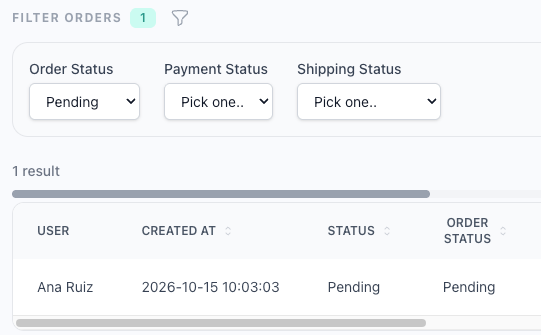
The orders waiting for you, first
The list opens on the orders whose payment you still have to confirm. Filter it by order, payment and shipping status to find the rest.
How to find an order →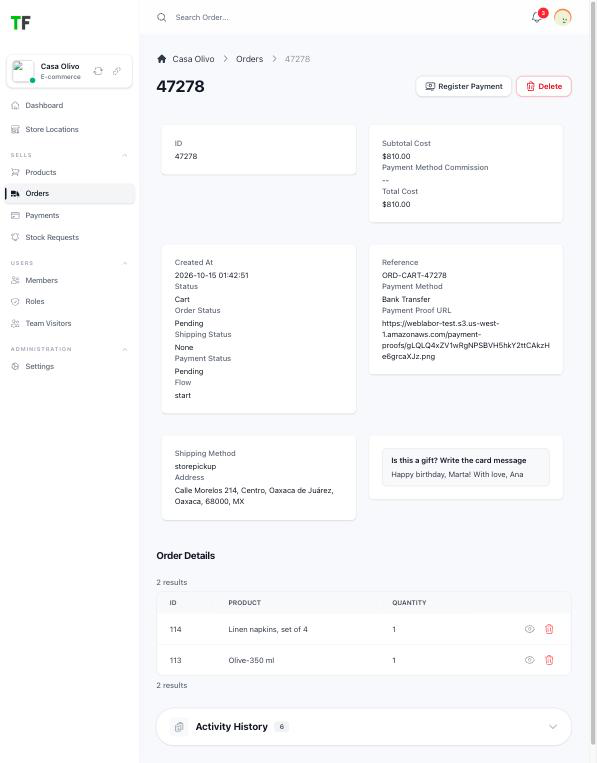
The whole order on one screen
See the buyer, the costs, the payment, the delivery address, the answers to your questions and every product with its options. Only the actions that apply to the order are shown.
What each status and action means →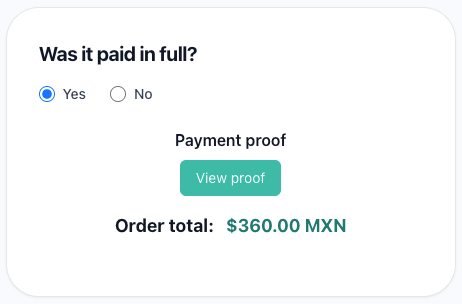
Confirm a transfer against its proof
Open the proof your customer uploaded next to the order total and say whether it was paid in full. A yes records the payment and tells your customer; a no cancels the order and puts its products back in stock.
How to confirm a payment →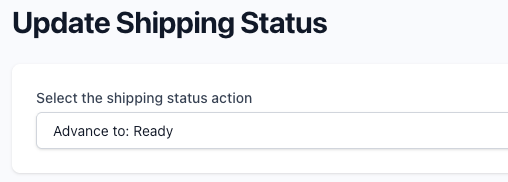
Follow each delivery step by step
Move a home delivery from preparation to ready, sent and received, mark an order as sent, finish it once it was delivered, or cancel it and get its products back in stock.
How to move an order forward →Ship with Skydropx from the order
With the Skydropx add-on, create the shipment with the rate your customer chose and download its label. When the tracking number arrives the order is marked as sent and your customer receives it by email.
How to ship with Skydropx →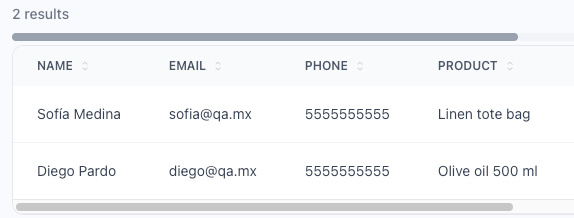
Never lose a customer to an empty shelf
When a product runs out, your customer leaves their name, email, phone, quantity and a message. Every request is listed with the product, so you can contact them when it is back.
How stock requests work →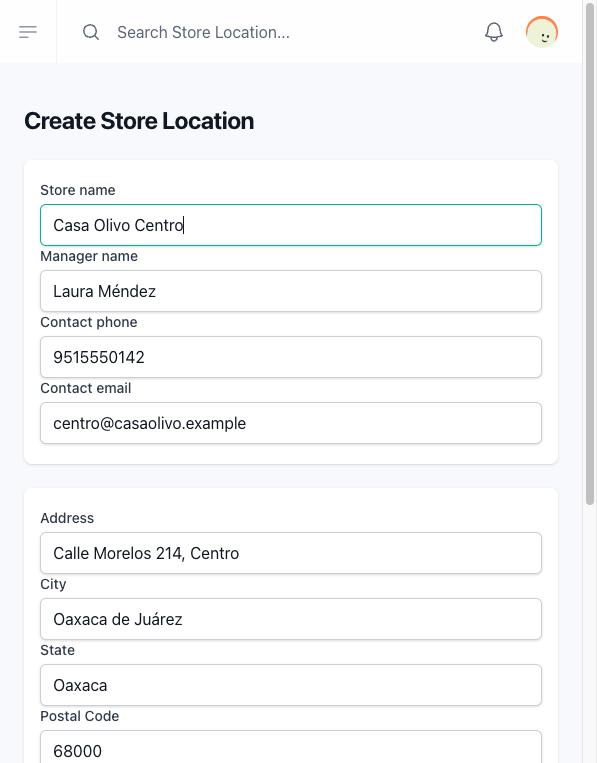
Your store locations
List the places your customers collect their orders from, with a manager, a phone, an email and the address. The default one is where your Skydropx parcels leave from.
How to add your store locations →